
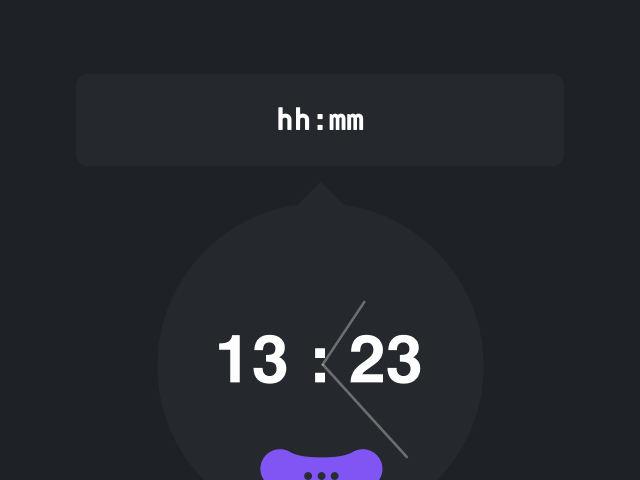


TimeDropper

A customizable JavaScript time picker for websites and apps. Give visitors a visual way to select hours and minutes in your forms.

How to use TimeDropper

Easily integrate TimeDropper into your website or app.

  1. 1

    1. Link plugin library to your web page's resources

    <head>
    <!-- timedropper lib -->
    <script src="timedropper-javascript.js"></script>
    </head>
  2. 2

    2. Initialize the plugin on a page element

    <input id="myInput">

    <!-- timedropper init -->
    <script>new timeDropper('#myInput');</script>
You can find more tech details on the official TimeDropper's documentation.
  1. 1

    1. Link plugin library to your web page's resources

    <head>
    <script src="https://code.jquery.com/jquery-3.3.1.slim.min.js"></script>

    <!-- timedropper -->
    <script src="timedropper-jquery.js"></script>
    </head>
  2. 2

    2. Initialize the plugin on a page element

    <input id="myInput">

    <!-- timedropper init -->
    <script>$('#myInput').timeDropper();</script>
You can find more tech details on the official TimeDropper's documentation.

What features does TimeDropper include?

A visual time picker that fits your forms.

  • Easy-to-use interface

    Easy-to-use interface

    Let visitors choose hours and minutes visually, without typing the entire time into a field.

  • Responsive layouts

    Responsive layouts

    Use the picker across desktop and mobile layouts, adapting time selection to different screen sizes.

  • Browser compatibility

    Browser compatibility

    Check your chosen version for browser support, including any requirements for older browsers.

  • Customizable theme

    Customizable theme

    Customize the picker appearance to keep time selection consistent with the rest of your form.

What accessibility features does TimeDropper include?

TimeDropper supports keyboard navigation and screen reader interaction.

Keyboard controls, focus management and labeled actions support different ways of choosing a time. Flexible placement helps the picker fit your layout.

  • Keyboard Navigation

    Open the picker, move between its controls and choose a time using the keyboard.

  • Managed Focus

    Managed focus helps keyboard users follow the selection process and identify the active control.

  • Collision Aware

    The picker adjusts near screen edges to help keep time selection controls visible.

  • Alignment Control

    Choose how the picker aligns with its input to fit your form and available space.

  • Screen Reader Support

    Labeled controls help screen readers identify time picker actions and explain the available interactions.

Accessibility features are included only from the javascript version 1.X

Download TimeDropper

Get TimeDropper and bring it to your next project.

Choose the version that fits your project, or try the configurator to explore its options.

jQuery

Version: 1.2.0

See it in action
  • Easy to Integrate
  • Cross-Browser Compatible
  • Mobile-Optimized
  • Accessibility-Friendly
Last release 2024-09-03

8k downloads 😍

Questions?

Here the answers!

How can I customize TimeDropper?

Customize the appearance and time format to fit your form. Check the documentation for the settings available in your chosen version.

Is TimeDropper mobile-friendly and accessible?

TimeDropper adapts to mobile layouts. JavaScript 1.x and later include keyboard navigation, focus management and screen reader support. Accessibility also depends on your form labels and layout.

Which browsers are supported?

Support varies by plugin version. Check its documentation and test your integration in your target browsers, especially if you support older releases.

What should I consider when checking performance?

Check the files and dependencies for your chosen version. Test performance within your page, especially with multiple pickers or slower mobile devices.

See also...

  • Datedropper

    Datedropper

    JavaScript date picker for forms and booking flows

    38.8k
    Datedropper
  • inLine

    inLine

    Rich text editor for editing directly on the page

    420
    inLine
  • Add to Calendar

    Add to Calendar

    Calendar button for websites and events

    141
    Add to Calendar